
Mass Importing Employees to VacationTracker:
There are many benefits to the mass importing of employees to VacationTracker:
- Saves time - Instead of adding employees one by one, you can import a large group at once.
- Faster Onboarding - New employees can be added to VacationTracker quickly so they can start requesting and tracking time off without waiting for manual setup.
- Fewer Manual Errors - Bulk importing reduces repetitive data entry and helps keep employee information consistent.
- Less Admin Work - Once employees are imported, VacationTracker can automatically manage leave balances, accruals, approvals, and reporting.
- Easy to Switch Systems - If you are moving from another HR or payroll system to VacationTracker then you can import employee profile data and historical leave information.
- Easier Scaling - It’s particularly useful when onboarding an entire company or a large department rather than adding employees individually.
So really, mass importing employees to VacationTracker means less admin work, faster setup, fewer data-entry mistakes and a quicker transition to a centralized vacation/leave management system, great right?! So let’s get started!
How to Mass Import Employees
Need to add or update a large number of employees at once? You can use our Import Tool to upload a spreadsheet and process multiple employees in one go.
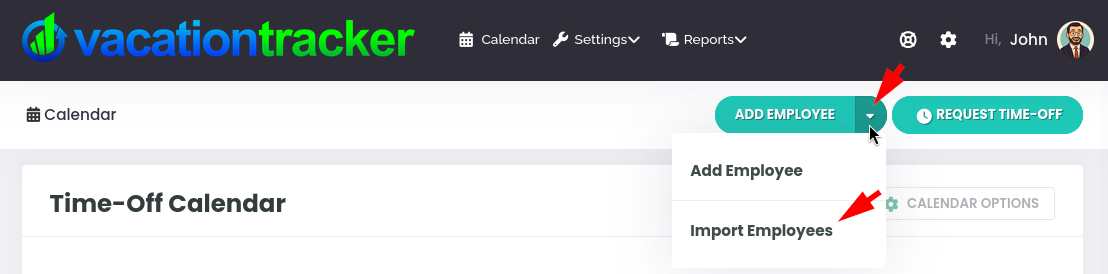
From VacationTracker, locate the Add Employee button and click the arrow to reveal the dropdown menu. Then click on the Import Employees option:
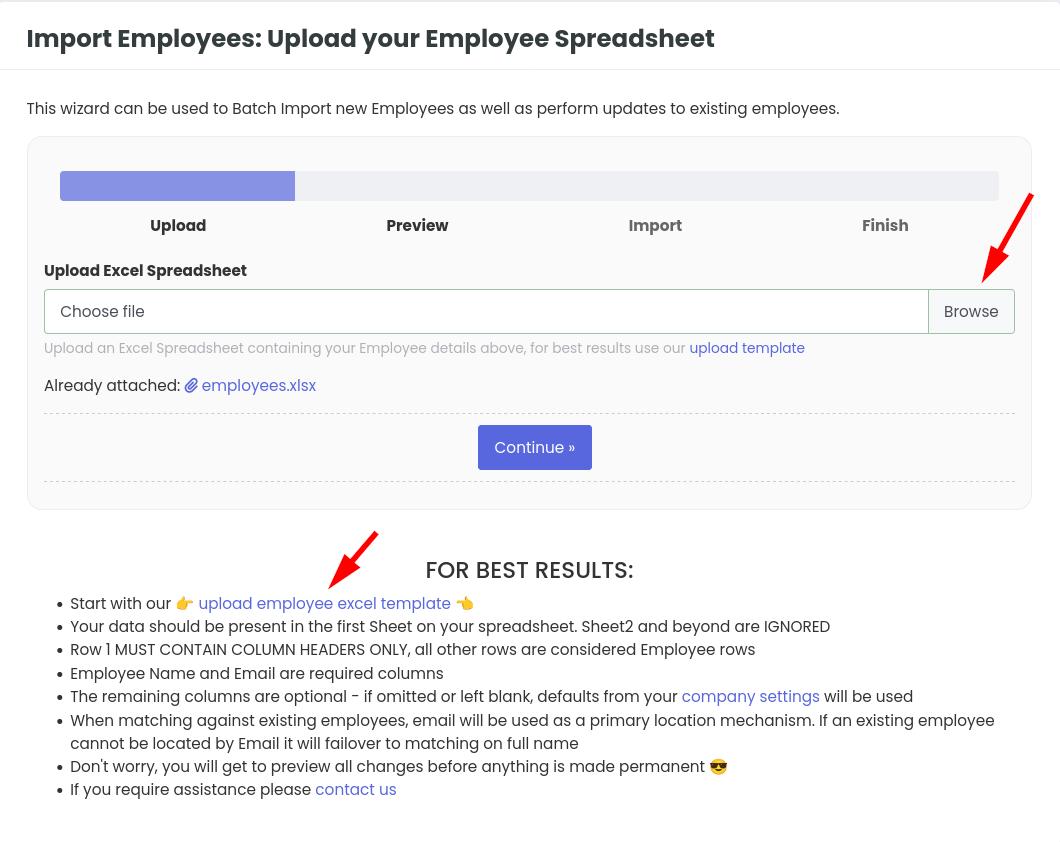
You will now be on the Import Employees page. Here you can click on Browse to upload an existing employee excel file that you already have. If you don’t already have one, then click on the link to download our Employee Excel Template
Additionally, instead of using the starting template you can also download the employees from your employee list, add tags and then re upload
Using Our Employee Excel Template
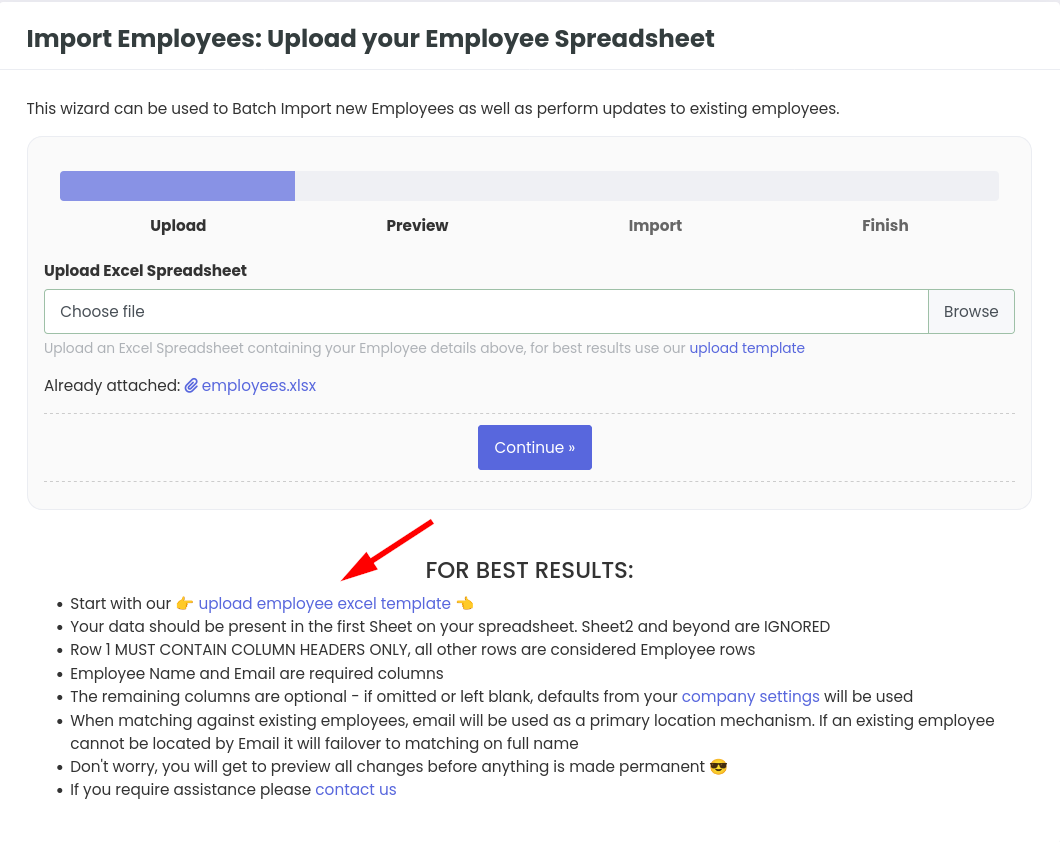
1. Download the Employee Excel Template
Start by downloading our 👉 Upload Employee Excel Template 👈.
Use this template to prepare your employee data for import.
2. Add Your Employee Data
Enter your employee information into the spreadsheet, keeping the following rules in mind:
- Use the first sheet only - Your employee data must be entered on the first sheet of the spreadsheet. Any data in Sheet 2 or beyond will be ignored.
- Row 1 must contain column headers only - All rows below Row 1 will be treated as employee records.
- Employee Name and Email are required - Every employee row must include both an employee name and email address.
- All other columns are optional - If an optional field is left blank or omitted, the default value configured in your company settings will be used.
3. Upload Your Spreadsheet
Once your spreadsheet is ready, upload it using the Import Tool.
The tool will process your spreadsheet and determine whether each employee is new or already exists in your account.
How Existing Employees Are Matched
When checking whether an employee already exists, we use the following matching process:
- Email address is used as the primary matching method.
- If an employee cannot be found using their email address, we will then try to match them using their Full Name.
This helps prevent duplicate employee records while making it easier to update existing employees.
4. Review Your Changes
Don’t worry - nothing is made permanent immediately.
Before any changes are applied, you’ll have the opportunity to Preview The Import and review the changes.
Take a moment to check that everything looks correct before confirming the import.
Need Help?
If you have any questions or run into issues while importing your employees, please contact our support team and we’ll be happy to help.